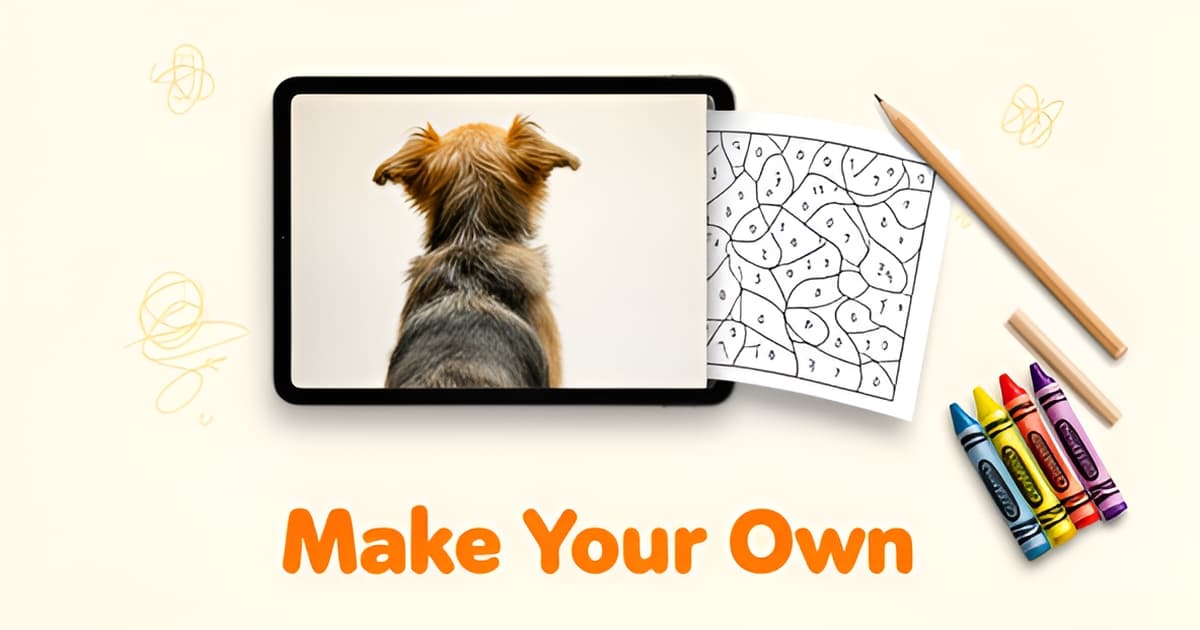
How do I create my own color by number?
Key Facts
- Color by number is an established commercial format, with Dover publishing titles within Creative Haven, confirming the format's durability in the market according to industry research
- Cozy and cute themes account for 24% of the 2025 adult coloring market value and are growing at 7% annually, representing the category where personal subjects like pets and family photos live per market research
- Bold and easy designs with thick outlines are the fastest-growing style at 6.2% CAGR, and by June 2025 nearly 40% of Amazon's top 50 adult coloring bestsellers promoted that simple, approachable style according to sales data
- The coloring apps market is projected to grow from $85.87 million in 2025 to $224.79 million by 2034, driven by demand for personalized art experiences and AI-powered customization per market projections
- Research shows color count is the key difficulty lever: roughly 6-8 colors suit young kids, under 15 makes a relaxed adult session, and 30-plus becomes a multi-hour project per design research
- Kits designed for children typically cap 'little ones' at up to 6 colors and 'big kids' at up to 8 colors, while toddler-level kits generally stay around 10 shades total per kit specifications
- The output is limited by the input more than by the software: a well-lit photo with one clear subject beats a busy, backlit shot every time per technical guide
Why Store-Bought Color by Number Pages Fall Short
Flip through any store-bought color by number book and you'll find the same cast: a generic lighthouse, a bouquet nobody picked, a horse that could belong to anyone. Nobody asked for these subjects. They exist because publishers need designs that appeal to everyone, which means they connect with no one.
If you've ever wondered how do I create my own color by number instead of settling for page 14 of a clearance-rack book, you're not alone. The market has quietly shifted toward exactly what mass-produced books can't deliver: personal subjects. Cozy and cute themes now account for 24% of 2025 coloring market value and are growing at 7% annually, according to industry research on adult coloring sales. That's the category where your dog, your kid's crayon drawing, and last summer's family photo live.
The numbers back this up in other ways, too. "Bold and easy" designs with thick outlines are the fastest-growing style in the category at a 6.2% CAGR, and by June 2025 nearly 40% of Amazon's top 50 adult coloring bestsellers promoted that simple, approachable style. Meanwhile, the coloring apps market is projected to grow from $85.87 million in 2025 to $224.79 million by 2034, driven largely by demand for personalized art experiences and AI-powered customization. People don't want more generic pages. They want pages that mean something to them.
Here's what store-bought books structurally can't give you:
- Your actual subject. A photo of your pet, your kid dressed as a dinosaur, Grandma's house. The picture that gets colored is one someone in the room actually loves.
- The right difficulty. Research on kit design shows color count is the key lever: roughly 6–8 colors suit young kids, under 15 makes a relaxed adult session, and 30-plus becomes a multi-hour project. A book picks one level for everyone.
- A keepsake. A colored-in family photo goes on the fridge. A colored-in random sailboat goes in the recycling bin.
There's also a design-quality problem baked into the format itself. As one technical breakdown of template generation puts it, the difference between a page you can happily color and one you abandon is how well the design merges regions and places numbers. Cheap, mass-produced pages often get this wrong, leaving you squinting at numbers printed outside their regions or cells too tiny to fill.
The good news: making your own closes every one of these gaps at once. Tools like Printoodle's photo-to-coloring-page generator turn a single clear photo into a print-ready numbered template in minutes, and if you're building pages for early learners, you can pair the result with a number line or a number chart so the counting practice continues off the page. Upload a photo, pick a color level, print. The subject is yours, the difficulty is yours, and the finished page is worth keeping.
How Color by Number Generation Actually Works
Ever wondered what actually happens between "upload photo" and "print page"? Behind every color by number generator sits a five-step pipeline, and knowing how it works is the difference between a page you're proud to hand someone and one that ends up in the recycling bin. If you're asking how do I create my own color by number, understanding this machinery helps you make smarter choices at every step.
According to a technical breakdown of photo-to-template conversion, every generator runs essentially the same sequence:
- Resize, the image scales to physical print dimensions at print resolution, because detail smaller than a crayon tip can't survive on paper.
- Color quantization, millions of colors collapse into a fixed palette of 20–40 shades, turning smooth gradients into flat color bands.
- Region merging, adjacent same-color pixels fuse into regions, and anything below a minimum size gets absorbed into its neighbor.
- Outlining, thin boundary lines trace each region's edge.
- Number placement, numbers sized to fit inside their regions, which only works if step three did its job.
The user-facing version is far simpler, of course. A typical browser workflow asks you to upload a photo, pick a color level (up to 6 colors for little ones, up to 8 for big kids), and download a worksheet with a full-color answer key. Printoodle follows the same pattern: upload, generate, print a ready-to-color PDF.
Here's the part most tutorials skip. Color quantization is mathematically easy; region merging is where quality lives or dies. As the same technical source puts it, how well the generator chooses what to throw away is the entire difference between a template you can color and one you can't.
Free tools that skip serious merging produce thousands of tiny regions. The result is technically correct and physically unpaintable. If you've ever printed a free page and found specks the size of rice grains, you've seen this failure firsthand.
So when you evaluate any generator, including ours, check the smallest regions, not the largest. Numbers should sit inside their shapes without overlapping boundary lines. If regions look cramped on screen, they'll be worse in your hand.
One more thing: your input matters more than any algorithm. The output is limited by the input more than by the software, so a well-lit photo with one clear subject beats a busy, backlit shot every time. And if you want to build number recognition alongside the coloring, pair your finished page with a number line or a number chart for a little extra counting practice.
Start With the Right Photo (This Matters More Than the Tool)
If you're asking how do I create my own color by number, the honest answer is that your photo choice decides most of the outcome. As one technical guide to photo-to-number conversion puts it, "the output is limited by the input more than by the software." The generator can only simplify what you give it, so give it something worth simplifying.
Start with the original camera file. Photos saved from social media have been compressed, and that lost detail matters when the tool reduces millions of colors down to a working palette of 20–40 colors and merges similar regions together. A compressed file produces mushy boundaries; the original produces clean, colorable shapes.
Pick one clear subject against a simple background: a face, a pet, a favorite toy. That's the same advice workflow guides recommend, because busy backgrounds generate too many small regions and can even fail to convert entirely. The subject should fill most of the frame.
Lighting is where most attempts go wrong. A backlit photo, with the sun behind your subject, reduces to a dark silhouette; one guide calls this the single most common cause of a poor result. Side lighting works far better because it gives the subject a lit side and a shadow side, which is exactly the tonal contrast the color quantization needs to build distinct regions. Overcast daylight or a window at an angle is ideal.
Before you upload, crop to your page shape. If you're printing on Letter or A4 portrait, crop the photo to portrait proportions so the tool isn't forced to stretch or trim your subject awkwardly.
Here's the quick checklist before you upload to Printoodle:
- Original camera file, not a social media save
- One clear subject filling the frame, plain background
- Side or window lighting; never backlit
- Cropped to your page shape before uploading
What if your photo is just too busy? A beach scene with a crowd, or a garden full of flowers, can produce thousands of tiny regions that are technically correct but physically unpaintable. The fix is to crop tighter: pull in on the one element you actually care about, or pick a different image entirely. A tight crop of one flower beats a wide shot of the whole garden.
And once your page is generated, remember that the numbers themselves are a learning opportunity for younger colorers. Pairing your finished page with tools like a number line or a number chart turns matching the key into counting practice, which is half the fun for the 3–8 crowd. Print it. Doodle it. Done.
Match the Design to Who's Coloring It
The same photo can produce a delightful afternoon activity or a frustrating slog, depending on how you set the difficulty. When you're figuring out how do I create my own color by number, matching the design to the person actually coloring it matters more than any other single choice.
Color count is your main difficulty lever. Fewer colors mean an easier, faster session; high color counts create beautiful blending but demand far more time. For young kids, stick to 6–8 colors. Generator tools designed for children typically cap "little ones" at up to 6 colors and "big kids" at up to 8, and toddler-level kits generally stay around 10 shades total. For a relaxed adult session, keep the palette under 15 colors. Once you push into 15–30 colors, you've built a genuine project that needs multiple sittings.
Thick outlines are not decoration; they're a buffer zone. Kids' kits use bold boundaries and large color blocks precisely because wobbly crayon work still lands inside the lines, which keeps the experience rewarding. Adult versions invert this: smaller and more numerous cells, larger palettes of two to three dozen colors, and more ambitious subjects.
Before you print, check number legibility the right way. Look at the smallest cells on the page, not the largest. If those tiny numbers look like grains of rice on your screen, they'll be smaller in your hand. Numbers should be readable at arm's length but light enough that they don't show through pale colors.
Set expectations on time, too:
- Kids' pages: roughly 30 minutes to 2 hours, usually finished in one sitting
- Relaxed adult pages (under 15 colors): a pleasant single evening
- Detailed adult projects (15–30 colors): 10 to 30+ hours across multiple sessions
If you're making pages for little learners, you can extend the number practice beyond the coloring itself. Pairing a custom page with a printable number line or a number chart turns one activity into counting practice, number recognition, and coloring in a single printout. Printoodle's generator handles the numbered regions automatically, so your job is mostly choosing the right difficulty level and a clean source photo.
One practical rule of thumb: when in doubt, go easier. A child who finishes a simple page feels proud and asks for another one. An adult handed a 30-color monster on day one may never finish it. Start with a palette the colorer can complete, then scale up on the next print.
Make and Print Your Custom Page in Printoodle
So you've picked the perfect photo. Now comes the fun part: turning it into a numbered page in about the time it takes to brew coffee. If you've been wondering how do I create my own color by number without wrestling with design software, this is where the work gets done for you.
Step 1: Upload your photo. Open Printoodle's color by number generator and drop in your image. The quality of what you upload matters most here, because as one detailed guide on photo-to-number conversion puts it, "the output is limited by the input more than by the software." A well-lit photo of one clear subject beats a busy group shot every time.
Step 2: Pick a color level. This is your difficulty dial. For young colorers, keep it to roughly 6 to 8 colors, which matches the "little ones" and "big kids" levels described in a comparable generator workflow. For grown-ups, anything under 15 colors feels relaxed, while 15 to 30 becomes a proper project, according to palette-size benchmarks for adult pages.
Step 3: Spend a credit and download. Each generation costs one credit, and your first 10 are free when you verify your email, so you can experiment without spending anything. You'll get a print-ready PDF, Letter by default with an A4 toggle, plus a full-color answer key so colorers can check their work. Everything you make lives in your library, where reprints are always free.
A few ideas worth trying with those free credits:
- A birthday activity kit featuring the birthday kid's own face or favorite toy as the mystery picture
- A pet portrait page, which pairs nicely with the cozy-cute themes that hold 24% of 2025 market value per industry research
- Classroom worksheets that reinforce counting, especially if you pair them with a number line or a number chart for reference
- A rainy-day stack for kids ages 3 to 12, printed once from your library and reprinted free forever
One troubleshooting note before you print: if a busy background produces a page that looks like confetti, re-crop to a simpler subject or try a different photo. Some images are genuinely too complex to convert, and a cleaner crop fixes most failures.
Print it. Doodle it. Done. Your first custom color by number is one photo and one free credit away.
Frequently Asked Questions
Can I really turn my own pet photo into a color by number page?
How many colors should I use for a kids' color by number page?
What makes a photo work well for color by number generation?
Will the numbers be easy to read, or will they overlap the coloring areas?
Can I use this for classroom counting practice, not just coloring?
What if my photo is too busy or complex to convert?
Your First Custom Page Is One Photo Away
So, how do I create my own color by number? By now the answer is simple: start with one well-lit photo of a single clear subject, let the generator handle the color quantization and region merging, and match the color count to whoever holds the crayons, 6 to 8 colors for young kids, under 15 for a relaxed adult evening. The subject is yours, the difficulty is yours, and the finished page actually means something, whether it's the birthday kid's face, a pet portrait, or a classroom counting worksheet. That personal angle is exactly where the coloring market is heading, with cozy, cute themes now holding 24% of market value. Your first 10 credits are free when you verify your email, and reprints live in your library forever. Ready to turn a favorite photo into a keepsake? Print it. Doodle it. Done.